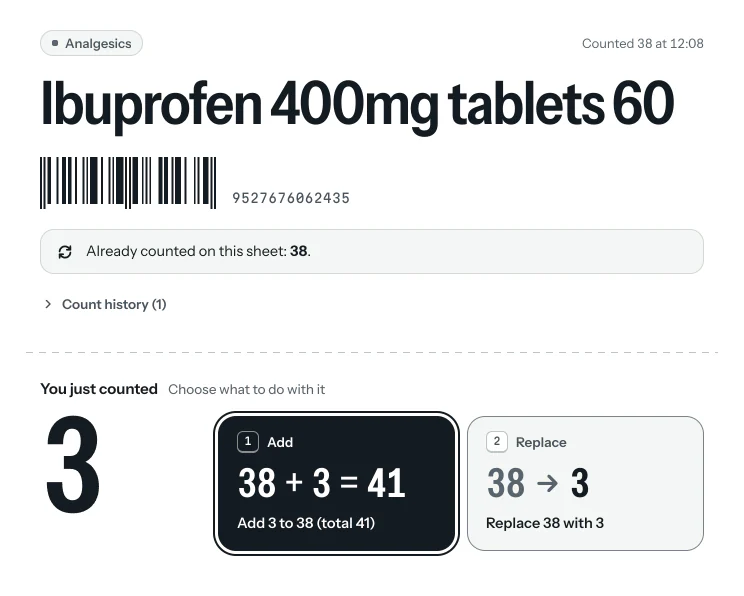
Same product on two shelves? It asks before adding.
Add or replace, with the sum on screen. Nothing is added or overwritten without asking.
For pharmacies in Malta and Gozo. Count with the scanners and phones you already have, next to your system: nothing to replace, no data to move.
The count app is ready today. Reading supplier invoices, and expiry and margin alerts, come next.


Your best people lose a weekend counting boxes.
The system says 6. The shelf says 2.
Every wholesaler’s invoice looks different, and someone types it in by hand.
You find out it has expired when it’s too late to send it back.
QuantumAI Pharma starts with the first two. The next stages take on the rest.
The count app is built and working, and several people can count at once. The screens on this page are real, with demo products.
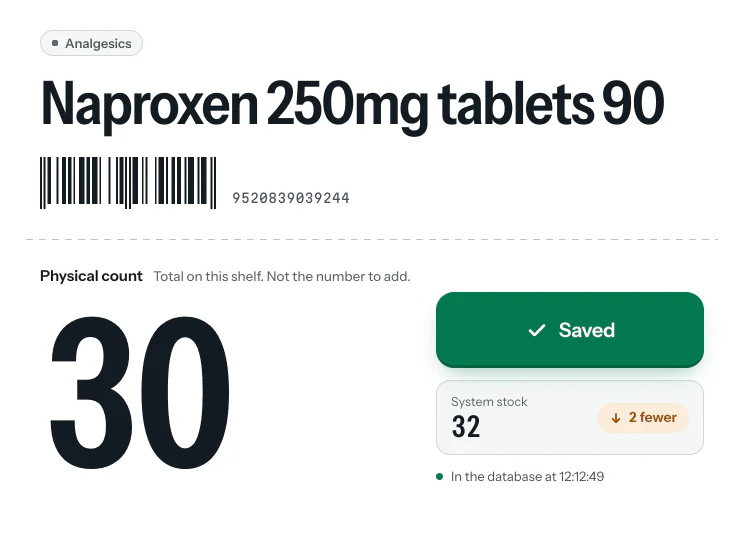
Scan, type the number, press Enter: the next scan is ready at once. The system’s figure stays hidden until the count is saved, recounts included. Then it tells you: same, 2 more or 2 fewer.
Add or replace, with the sum on screen. Nothing is added or overwritten without asking.
Camera scanning, a big one-handed keypad with a tall Save key, large type and dark mode.
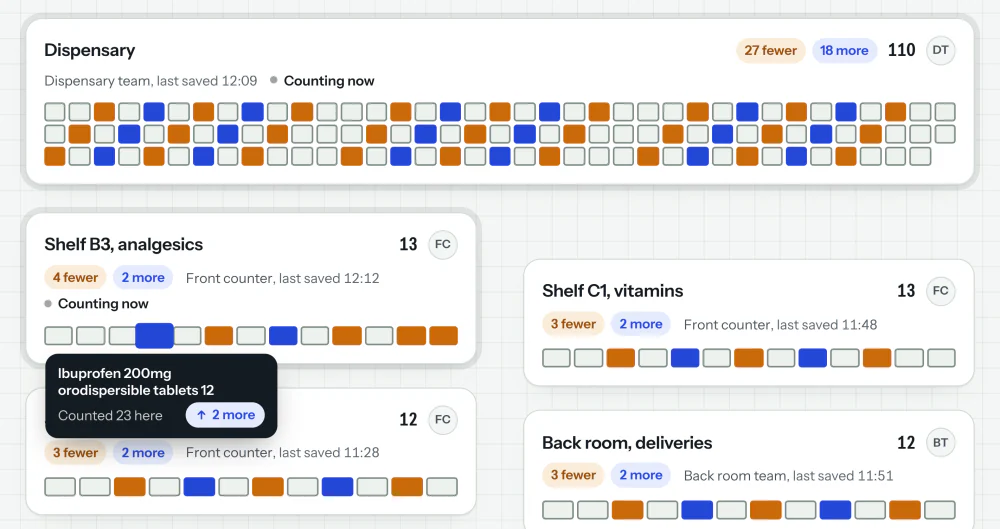
Whoever runs the count watches every area fill in: what matches, what’s over, what’s short, and what nobody has reached yet. You see every difference before anything goes back into your system, while there’s still time to recount.
Illustration of a count filling in. Below, the real screen in the app.
Your management system keeps doing what it does today, and POYC and FMD stay with whatever handles them now. QuantumAI Pharma starts from your system’s stock export and adds what’s missing around it.
Stays as it is
Your management system
Your stock: today from your system’s export, later a live link where your system allows it.
Reviewed results, ready for your system.
Added, in stages
QuantumAI Pharma
Scan, review the differences, download a clean result. With the scanners and phones you already have.
Forward the PDF or take a photo, from one wholesaler or many. The AI will read lines, prices, discounts, batches and expiry dates; fixed arithmetic checks will catch mistakes; a person confirms. Price changes against the last invoice will be flagged.
Expiry alerts will come in time to return stock. Margins will use the right VAT rate. Reorder lists will always be sent by a person, and every branch will be in one view.
Steps 2 and 3 come next, built in this order after the count.
We check your system’s stock export with you and set up the import for it. Tills, POYC and FMD stay as they are. The catalogue check flags problem items before anyone scans.
We split the shop into areas, one count list per person and area. Spare scanners or staff phones do the counting.
A short trial before the real thing.
Staff scan shelf by shelf while you watch the map fill in, with the pharmacy closed or stock movements paused.
Settle the differences and download a clean result for your system. How it goes in depends on what your system accepts.
No. It sits next to the one you use. We start from its stock export: before the first count we check that export with you and set up the import for it. Later, a live link where your system allows it. Nothing to replace, no data to move.
They stay with the system that handles them today. We don’t touch prescriptions, patient data, POYC or FMD checks.
No. Your barcode scanners work, and so do staff phones and tablets. It runs in the browser.
After review you download a clean result for each count list, in a file that opens in Excel. How it goes in depends on what your system accepts, and we work that out with you before the first count.
The count app works one pharmacy at a time. Seeing every branch in one view, with each branch limited to its own figures, is part of the expiry and margins stage.
It depends on how many pharmacies you have and which stages you want. After a short chat we give you a clear price before anything starts, with no obligation.
Very little. You send us one stock export from your system; we load the catalogue, check it and set up the areas. Staff learn on the trial shelf: scan, type the number, press Enter.
Counting carries on. Counts wait on the device and send themselves when the connection is back, never doubled.
Only the people you give access to. Connections are encrypted, the app holds stock figures only (no patient data), and you can download your results at any time.
No. When invoice reading arrives (the next stage), the AI reads the invoices, fixed checks verify them, and a person confirms every invoice and sends every order.
Send us a message or call. We’ll talk through your pharmacy and your system, and suggest a short trial on one shelf before a full count.
Send us a message, with no obligation. We’ll ask which system you use and how many branches you have, explain how it would work for you, and tell you honestly whether it fits. WhatsApp is the easiest way.
QuantumAI is a software team based in Malta.